
Transcription Matching
Introduction
After recording ADR lines, it is important to verify that what was recorded matches the original cue text. Transcription Matching automates this process by comparing ADR cue event text against Pro Tools®' built-in transcription data, providing a confidence score for each match. The goal is to work through all recorded cues and confirm that every line has been correctly recorded - either automatically at high confidence, or manually after review.
Pro Tools® 2025.6 and later includes transcription capabilities that analyse audio tracks and generate word-level transcription data with precise timing information. Transcription Matching uses this data to find the best match for each ADR cue, comparing the cue text against the transcribed words while taking timing proximity into account.
Note: Transcription data can also be used to auto-fill timecodes during script import. See the Transcription-Aided Script Import section in the Manual ADR Cue Import from a Shooting Script chapter for details.
Requirements
Before using Transcription Matching, ensure the following are in place:
- Pro Tools® 2025.10 or later, with transcription data already generated for the relevant audio tracks. (Pro Tools® 2025.6 can generate transcriptions, but 2025.10 is required for Cue Pro to read them.)
- DAW Control enabled in Cue Pro's DAW tab in the main window.
- The Modern DAW Control Mode selected in the ADR REC tab of the Preferences / Settings window.
Note: If any of these requirements are not met, a dialog will appear explaining what needs to be configured before the feature can be used.
Running a Match
To begin, select the recording tracks and time range in the Pro Tools® session that contain the recorded ADR audio. This selection tells Cue Pro which transcription data to retrieve.
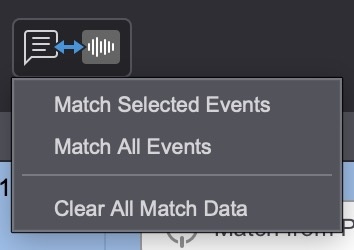
Click the Match button in the main window's utility toolbar. This provides two matching options - Match Selected Events matches only the currently selected ADR cue events in the Event List, while Match All Events matches all events in the active timeline. For a full verification pass, Match All Events is typically the best starting point.
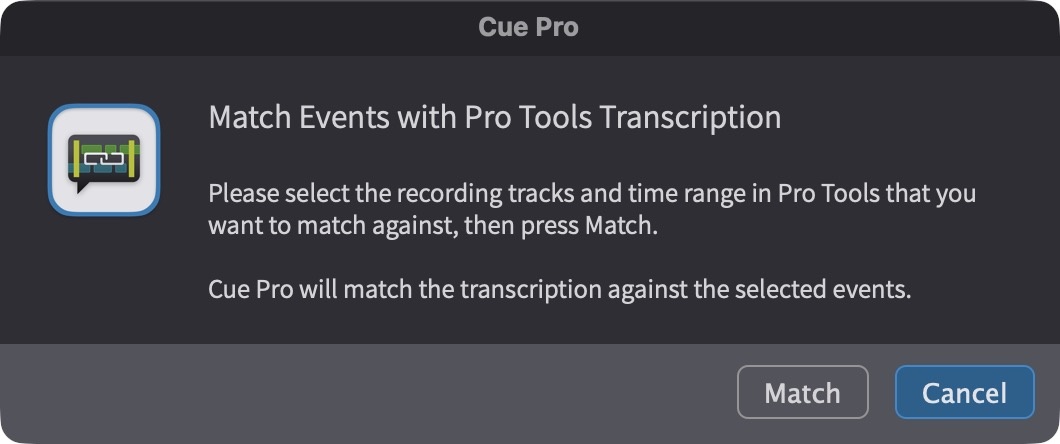
A dialog appears to confirm that the correct tracks and time range are selected in Pro Tools®. Press Match in this dialog to begin the matching operation. For larger batches, a progress indicator appears over the Match button - the operation runs in the background and can be cancelled at any time.
Reviewing Match Results
Once matching is complete, the Match column in the Event List displays the results. This column can be shown or hidden by right-clicking the table header.
Each matched event displays a confidence score and a colour-coded icon indicating the quality of the match - green for high confidence (70% or above), yellow for medium confidence (40–69%), and orange for low confidence (below 40%). The track name from Pro Tools® where the match was found is also shown with a speaker icon. Hovering over the confidence area reveals a tooltip showing the actual matched transcription text.
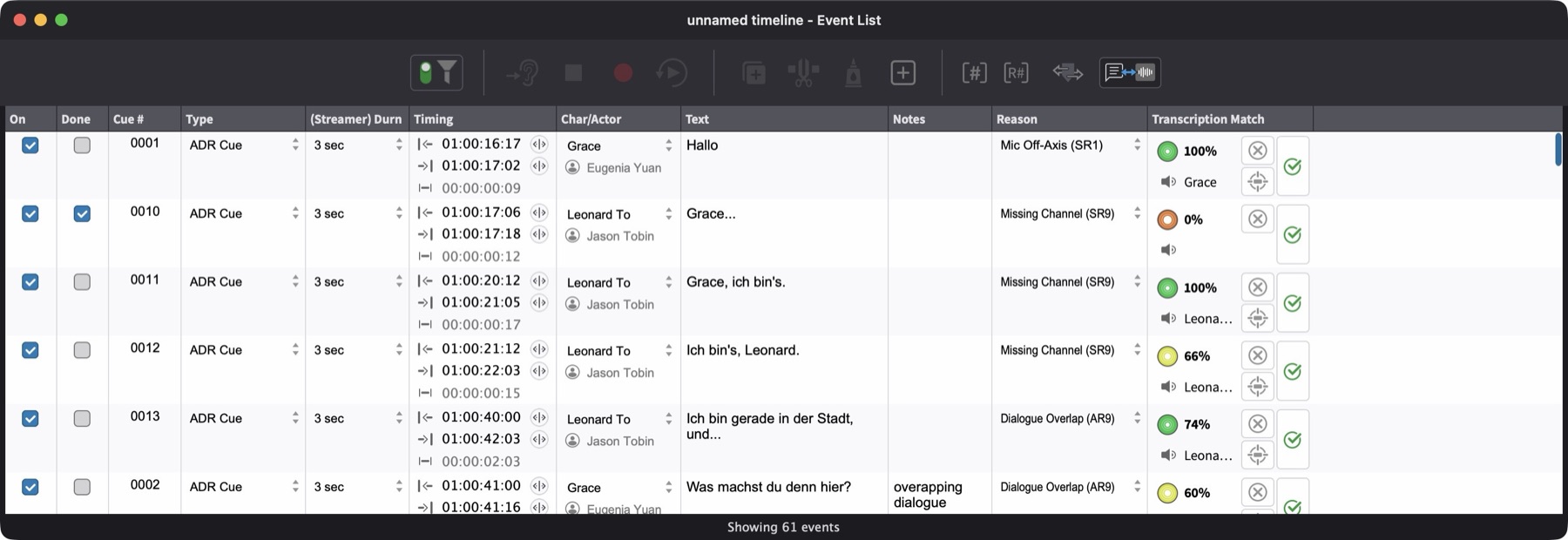
Events that achieved a 100% match can be considered verified - the transcription exactly matched the cue text. The focus of the review process should be on events that scored below 100%.
Filtering and Working Through Non-Matching Lines
To efficiently work through the results, filter or sort the Event List by the Match column to focus on events that did not achieve a 100% match. This separates the lines that need manual review from those already confirmed.
For each non-100% event, click the Locate button in the Match column cell. This navigates Pro Tools® to the corresponding track and sets the timeline selection to the matched time range, making it straightforward to audition the recorded audio directly in Pro Tools® and compare it against the cue text.
After listening to the line, there are two outcomes:
The recorded line is correct - Click the Confirm button to mark the match as verified, setting its confidence to 100%. Once confirmed, the confirm button becomes disabled for that event.
The recorded line does not match - The line may need to be re-recorded. Click the Clear button to remove the match result and return the event to an unmatched state for future re-matching after the line has been re-recorded.
Work through each non-100% event in this way - locate, listen, then confirm or clear - until all events in the list show a 100% match.
Manual Matching
Some events may not receive a match during the bulk operation - for example, if the cue text differs significantly from the transcription, or if the recording was on a track outside the initial selection. These events display a Match from Pro Tools selection button instead of a match result.
To manually match one of these events, select the relevant recording track and time range in Pro Tools® that contains the dialogue for that particular cue, then click the Match from Pro Tools selection button in the event's Match column cell. Cue Pro will fetch the transcription data for the current Pro Tools® selection and attempt to match it against that single event.
Clearing Match Data
To start fresh or remove match data that is no longer needed, match data can be cleared on a per-event basis by clicking the Clear button in the Match column cell, or in bulk by choosing Clear All Match Data from the Match button menu. A confirmation dialog appears before bulk clearing. Clearing match data does not affect the ADR cue events themselves - only the transcription match information is removed.